
Officials Accessing Invoices
-
Log in to ZebraWeb.
-
Enter the Sport-Specific Portal where the invoice was created.
-
Click ZebraWeb Assigning.

-
In the black header, hover over Reports and click Invoices.

-
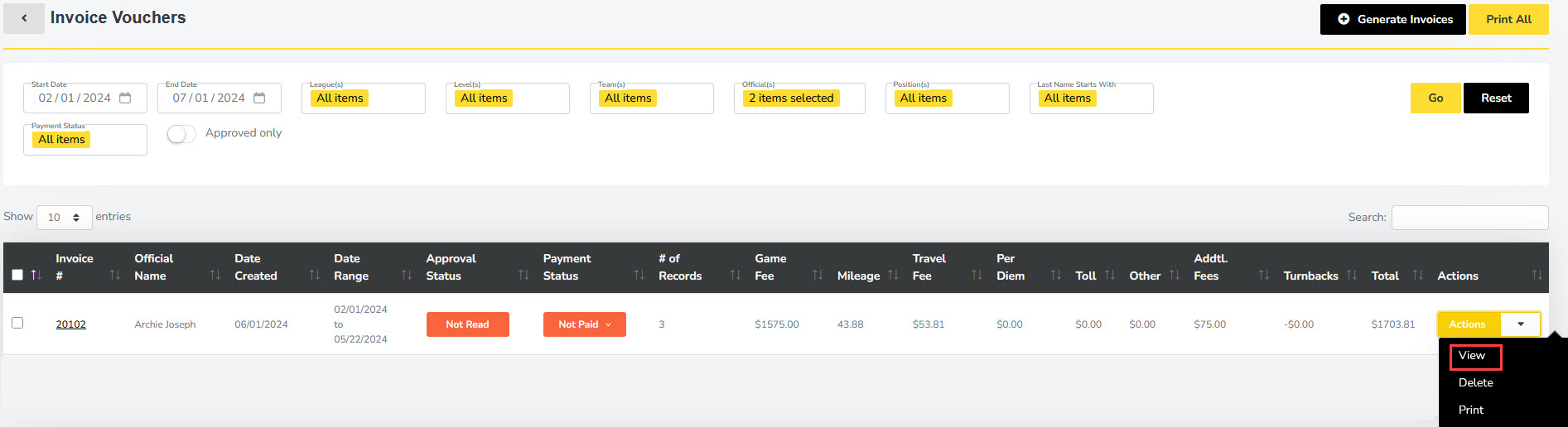
On the next page, enter the Start Date and End Date for the season (e.g., for Spring: Start Date = 02/1/2024 and End Date = the final play date of the season), then click the yellow Go button.

-
In the Actions column to the right of the invoice, click View.
-
Your invoice will generate. At the bottom, sign using your mouse and click Approve Invoice if everything is correct. If anything is incorrect, contact your assigner.